API Keys
The API Keys Management section in VRBTM allows administrators and developers to create, manage, and monitor API keys used to authenticate automated requests to the VRBTM API. This enables integrations with third-party systems or custom dashboards while maintaining strict control over security and usage limits.
How to Access API Key Management
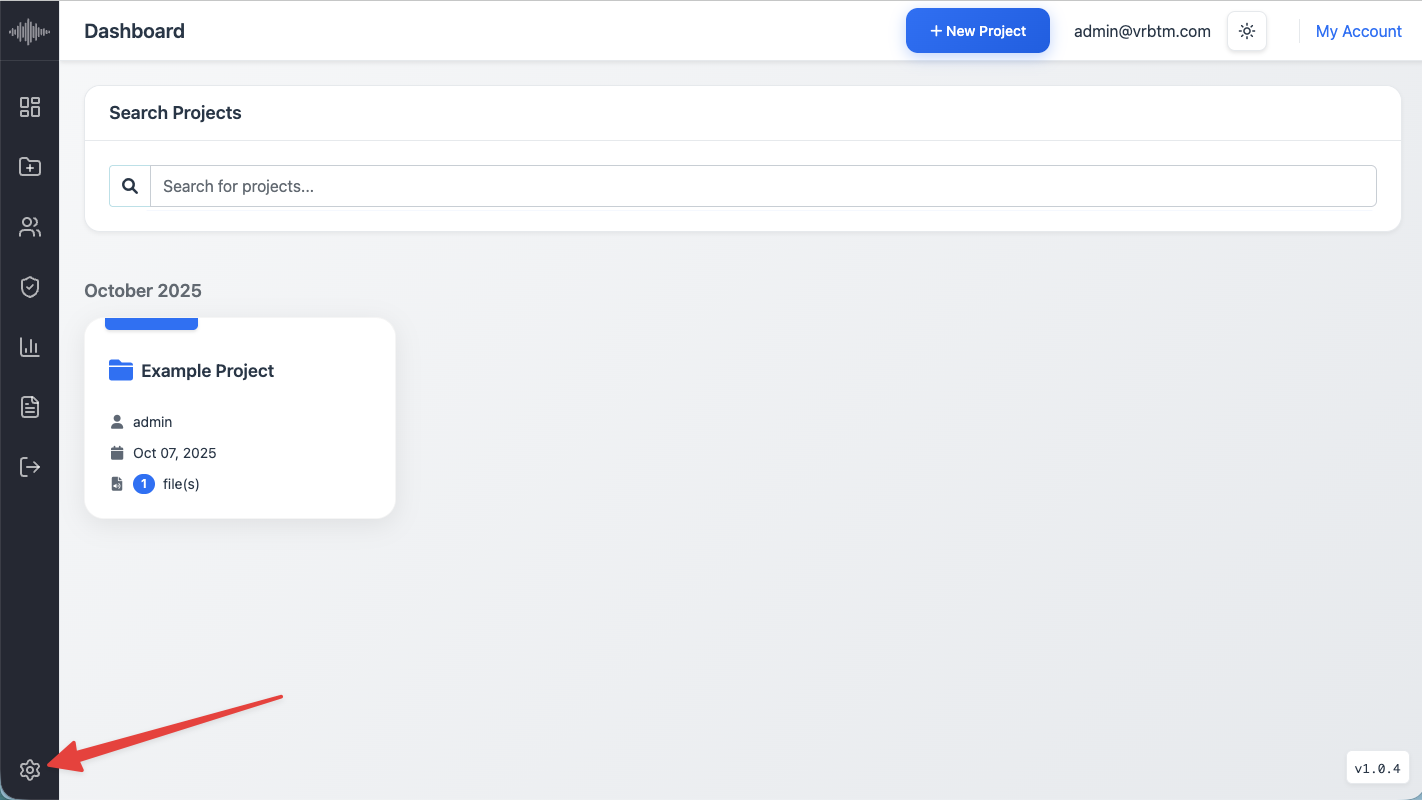
1. Navigate to Settings: Click Settings from the left navigation menu to access the configuration area of your VRBTM account.
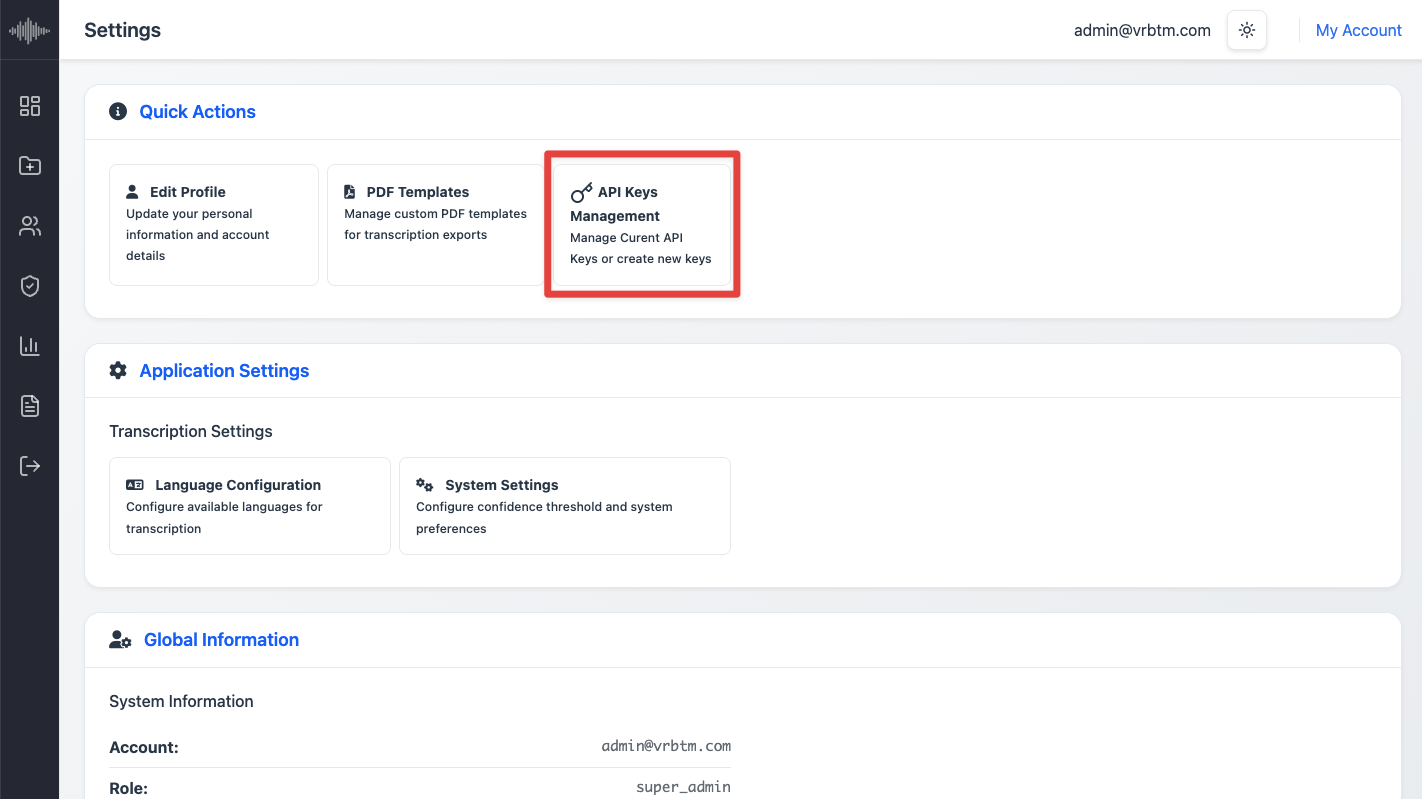
2. Open API Keys Management: Under Quick Actions, select API Keys Management to view existing keys and create new ones.
Overview of the API Keys Page
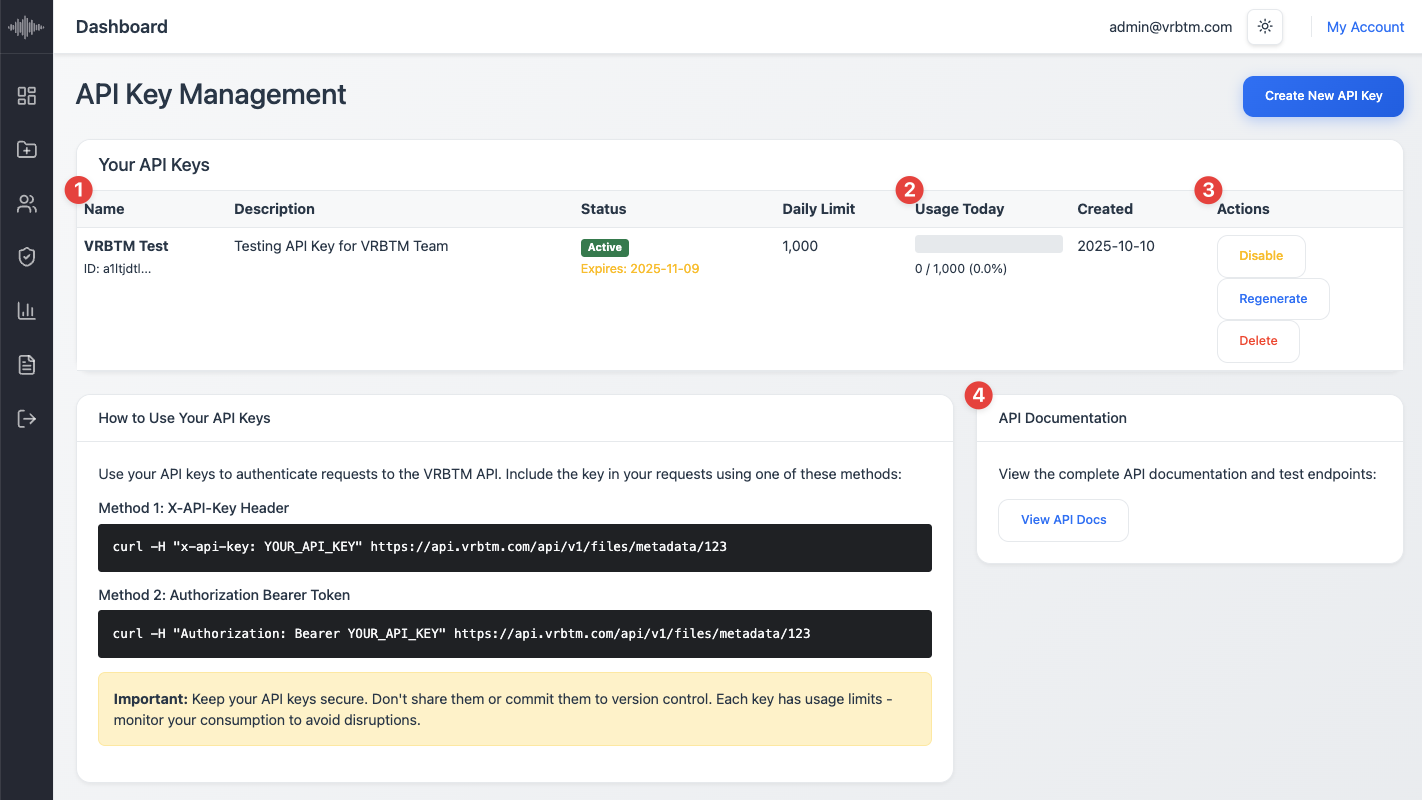
On the API Keys Management page, you’ll find:
-
1. List of Existing API Keys: Displays all active and inactive keys along with their names, descriptions, status, daily request limits, and creation dates.
-
2. Usage Bar: Tracks how many requests have been made with each key relative to its daily limit.
-
3. Actions: Options to Disable, Regenerate, or Delete each API key.
-
4. Documentation Link: Quick access to the API Docs section, where you can explore and test endpoints interactively.
-
Tip: The Regenerate option creates a new key immediately, invalidating the previous one — use this if you believe your key has been exposed or compromised.
How to Create a New API Key
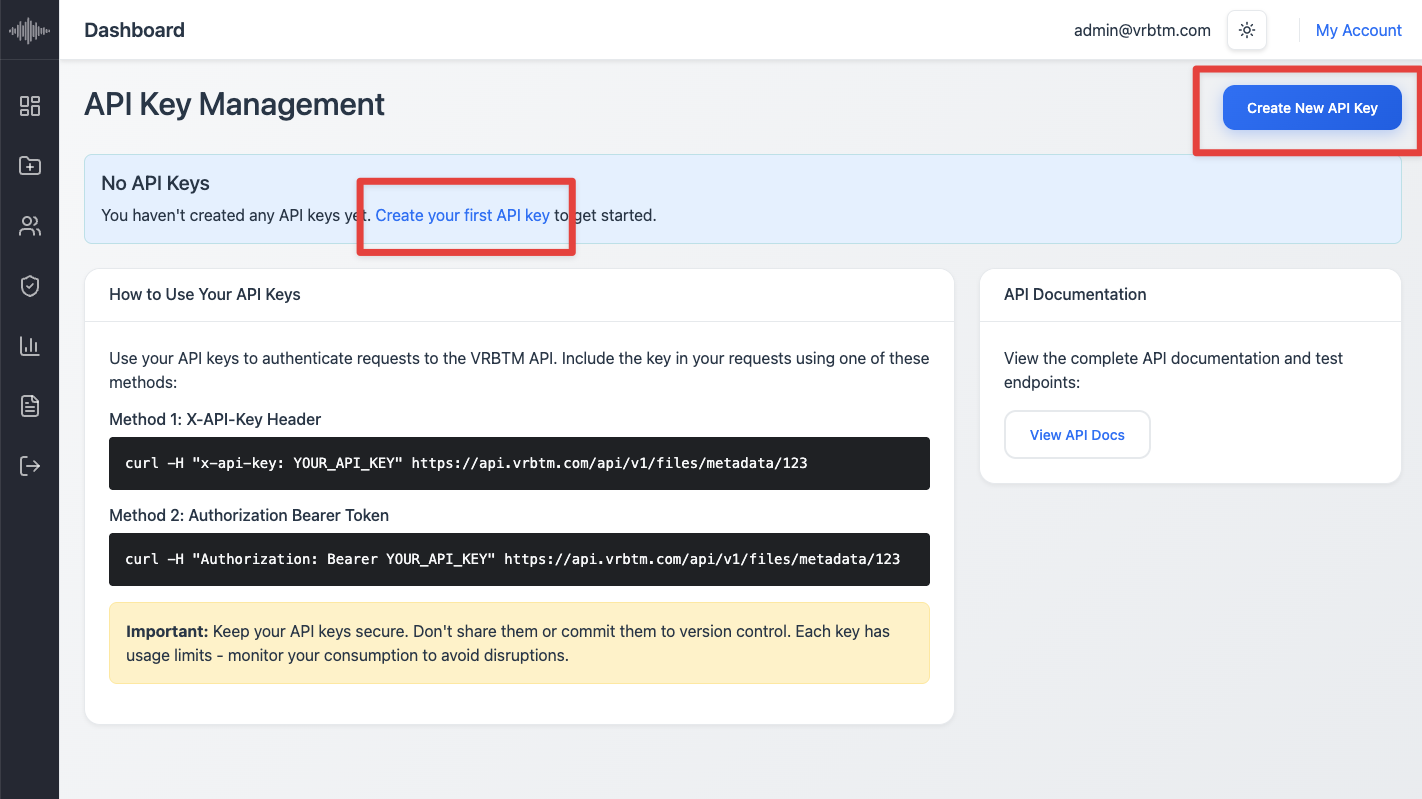
1. Click “Create New API Key” At the top-right of the page, click the Create New API Key button.
If this is your first time creating one, you’ll also see a Create your first API Key button in the center of the page.
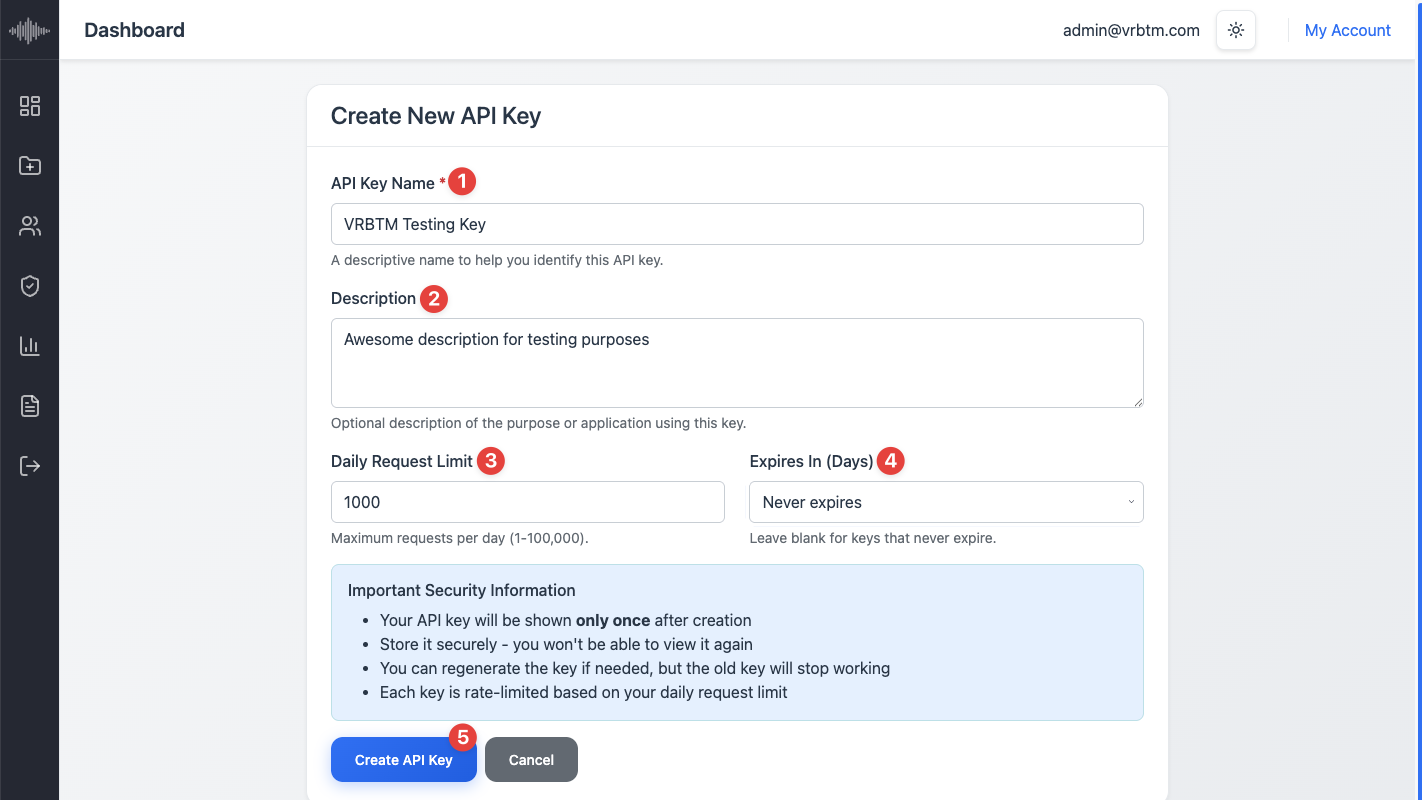
2. Fill in the Key Details:
-
API Key Name: A descriptive name to identify your integration (e.g., Dashboard Integration or Mobile App Key).
-
Description: (Optional) A short note explaining the purpose or application using this key.
-
Daily Request Limit: Set the maximum number of API requests allowed per day (1–100,000).
-
Expiration: Choose when the key should expire — options include 30, 90, 180 days, or 1 year. By default, the key is set to Never Expires, unless you select a specific duration.
-
When ready: click Create API Key to confirm — or click Cancel if you decide not to create the key at this time.
Saving and Securing Your API Key
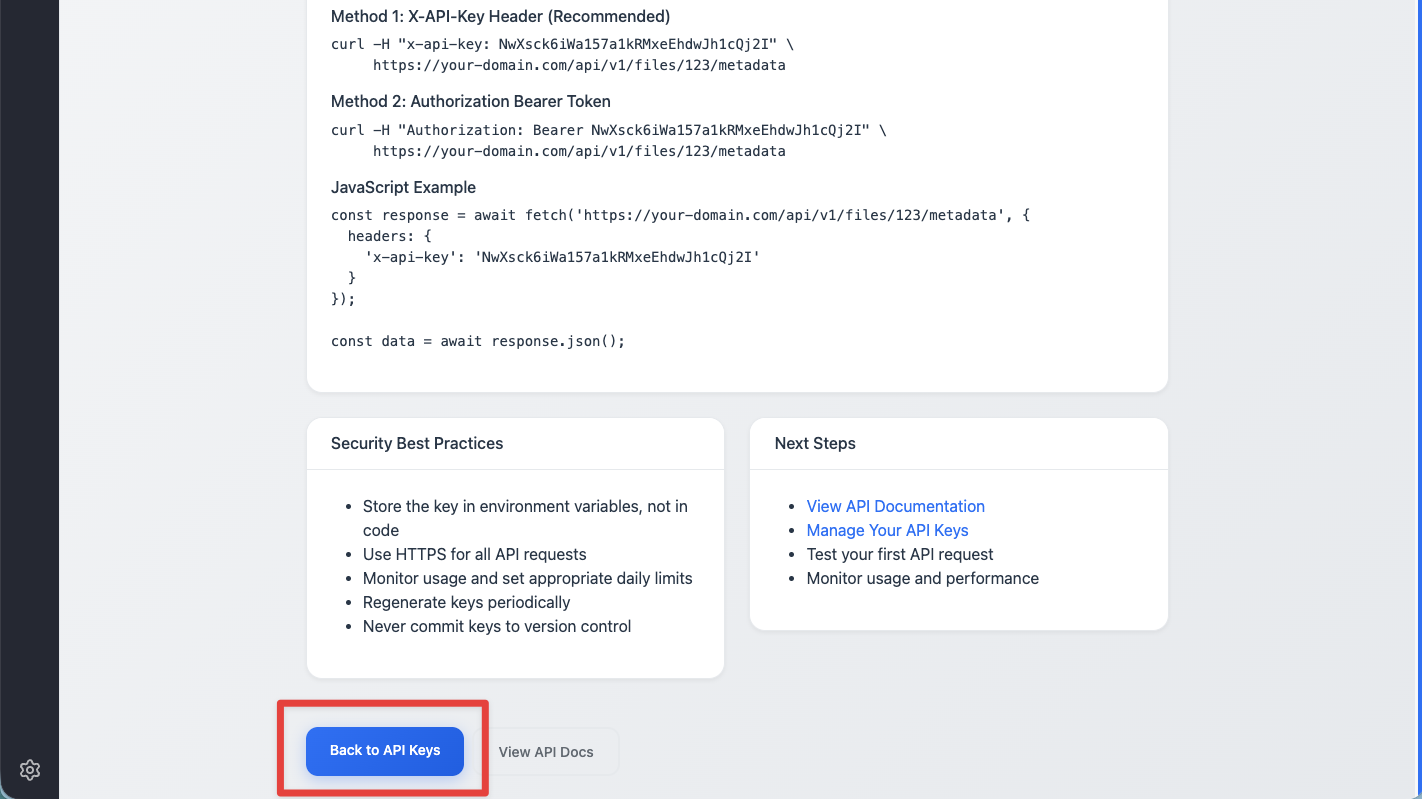
Once created, a confirmation page will appear displaying your new key only once.
Important Notes:
-
Copy and store your key securely — you won’t be able to view it again.
-
Each key is rate-limited based on the daily request limit you defined.
-
If necessary, you can regenerate a new key later (the old one will stop working).
-
Never share your API keys or commit them to public repositories.
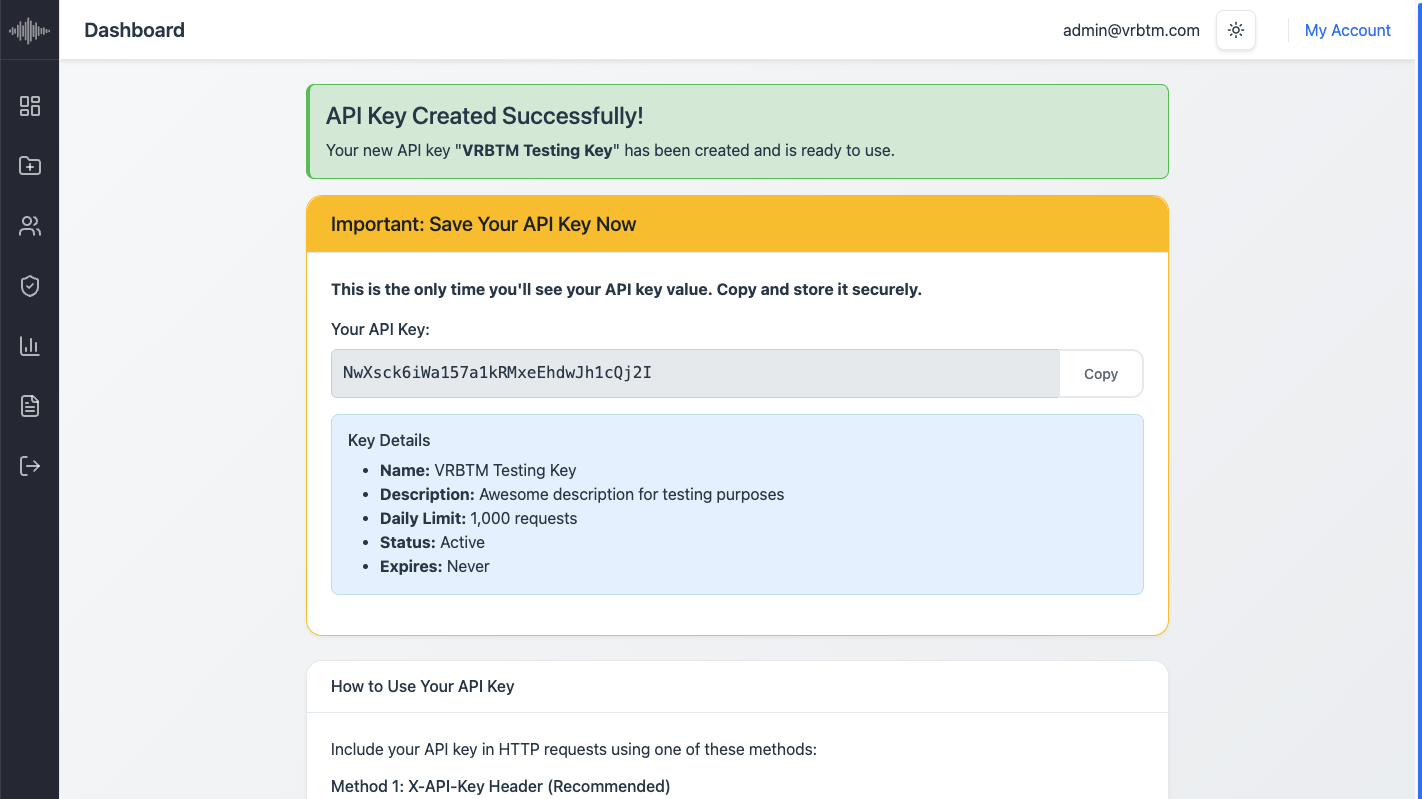
After copying your key and storing it in a safe place, you can return to the main list by clicking Back to API Keys at the bottom of the page.