VRFY Hub App
Overview
VRFY Sennheiser Hub App is an intuitive tool designed to make your audio workflow simple and efficient. With it, you can record, transcribe, and manage your audio files seamlessly — all from a single interface. Whether you’re capturing a live conversation, creating transcripts for documentation, or configuring your recording environment, this app connects directly to the VRFY platform for a smooth and reliable experience.
Installation and First Steps
Run the Installer
Launch the installer file that you downloaded from the official site or received through another trusted source.
Open the Application
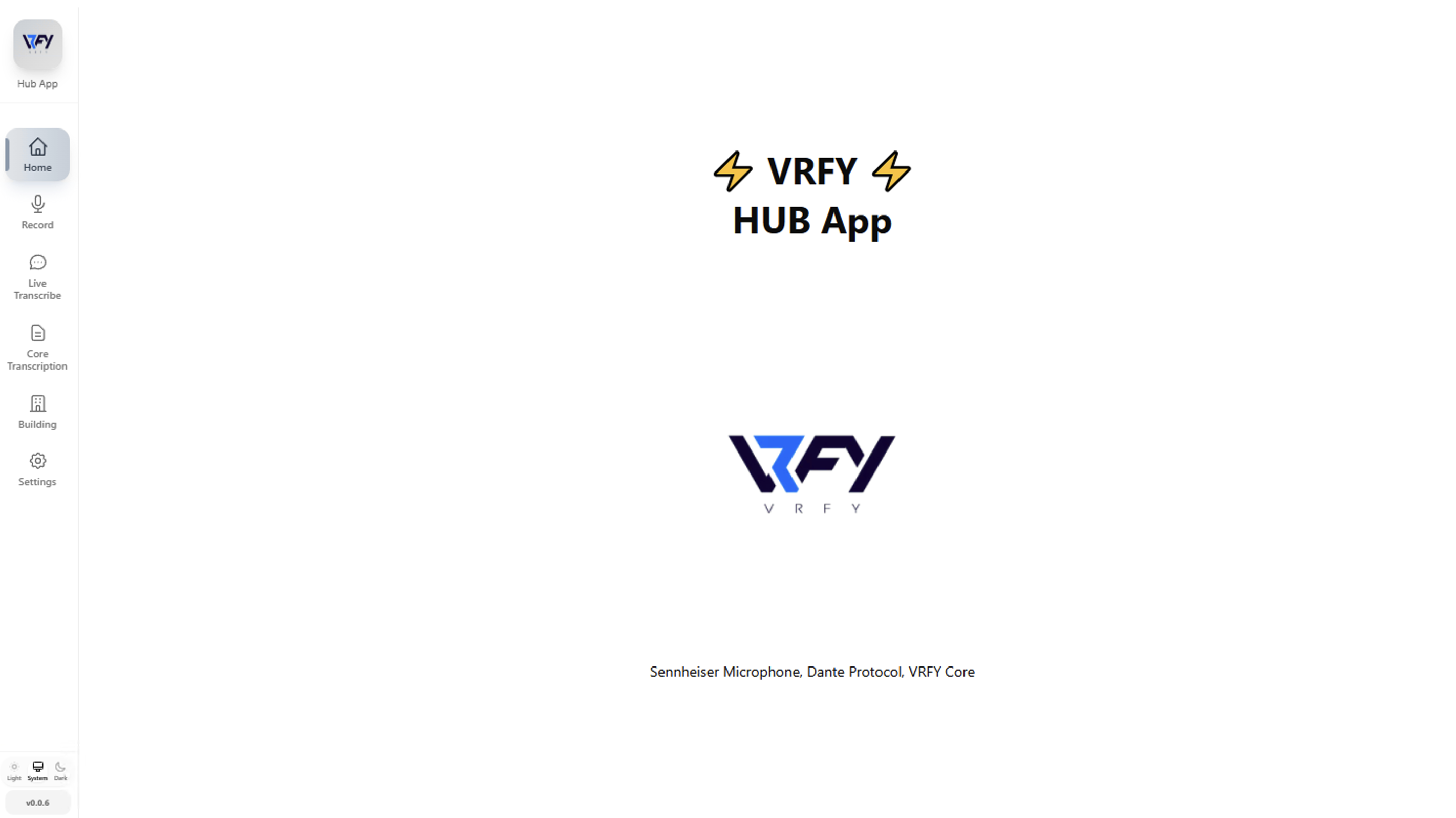
Once installed, open the app to access the Home screen. On the left side, you’ll find the main navigation menu.
Main Sections
- Home: The starting point of the application, where you can quickly access the most recent actions and navigate to other features.
- Record: Use this screen to record audio directly within the app. You can select your preferred audio input source, start a new recording, and review the list of previous recordings in the same interface.
- Live Transcribe: Similar to the Record screen, but with an extra feature — it lets you see your transcription in real time while you record. This is ideal for meetings, interviews, or live sessions where instant feedback is valuable.
- Core Transcription: This section lets you manage and process your recorded files. You can view the status of each file, upload them to the VRFY platform, and generate transcriptions automatically. It’s the main workspace for reviewing, tracking progress, and ensuring your transcriptions are accurate and complete.
- Building: Design the layout of the recording environment. This tool allows you to visually configure the room setup — for example, where microphones and speakers are located — to optimize your recording quality.
- Settings: In this section, you can configure your API Keys to connect the app with your VRFY account and platform. You’ll also find basic audio settings, such as preferred recording format and performance options.
- Light/Dark Mode Switch: At the top corner, you’ll find the theme switch that lets you choose between Light Mode (for bright environments) and Dark Mode (ideal for low-light settings). You can also enable System Mode, which automatically follows your device’s theme preference.
API Key Configuration
Before setting up your connection, make sure you have already created your API Key on the VRFY platform. If you don’t have one yet, you can follow the instructions in the API Keys Management section of the platform.
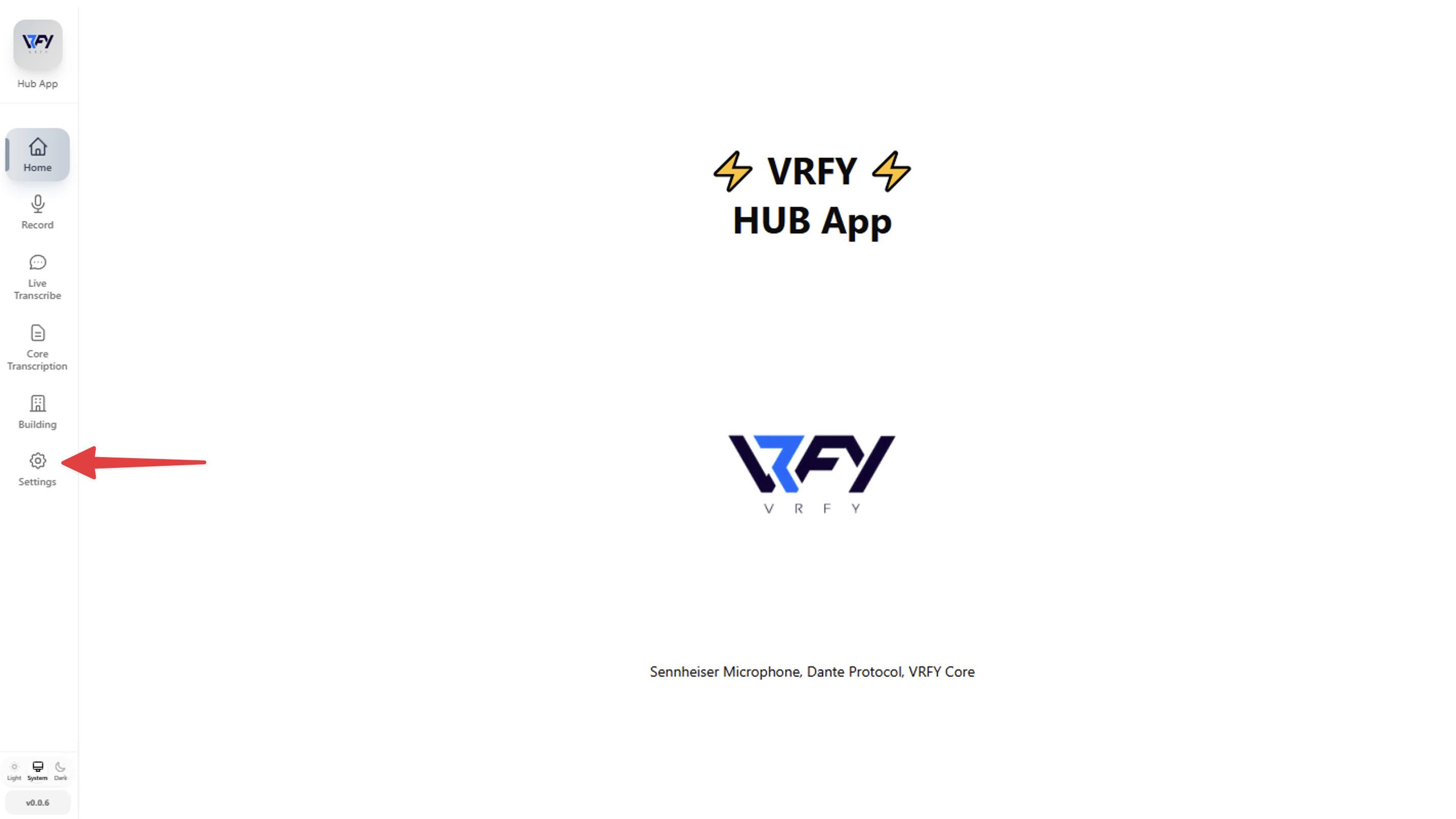
1. Go to the Settings menu in the app.
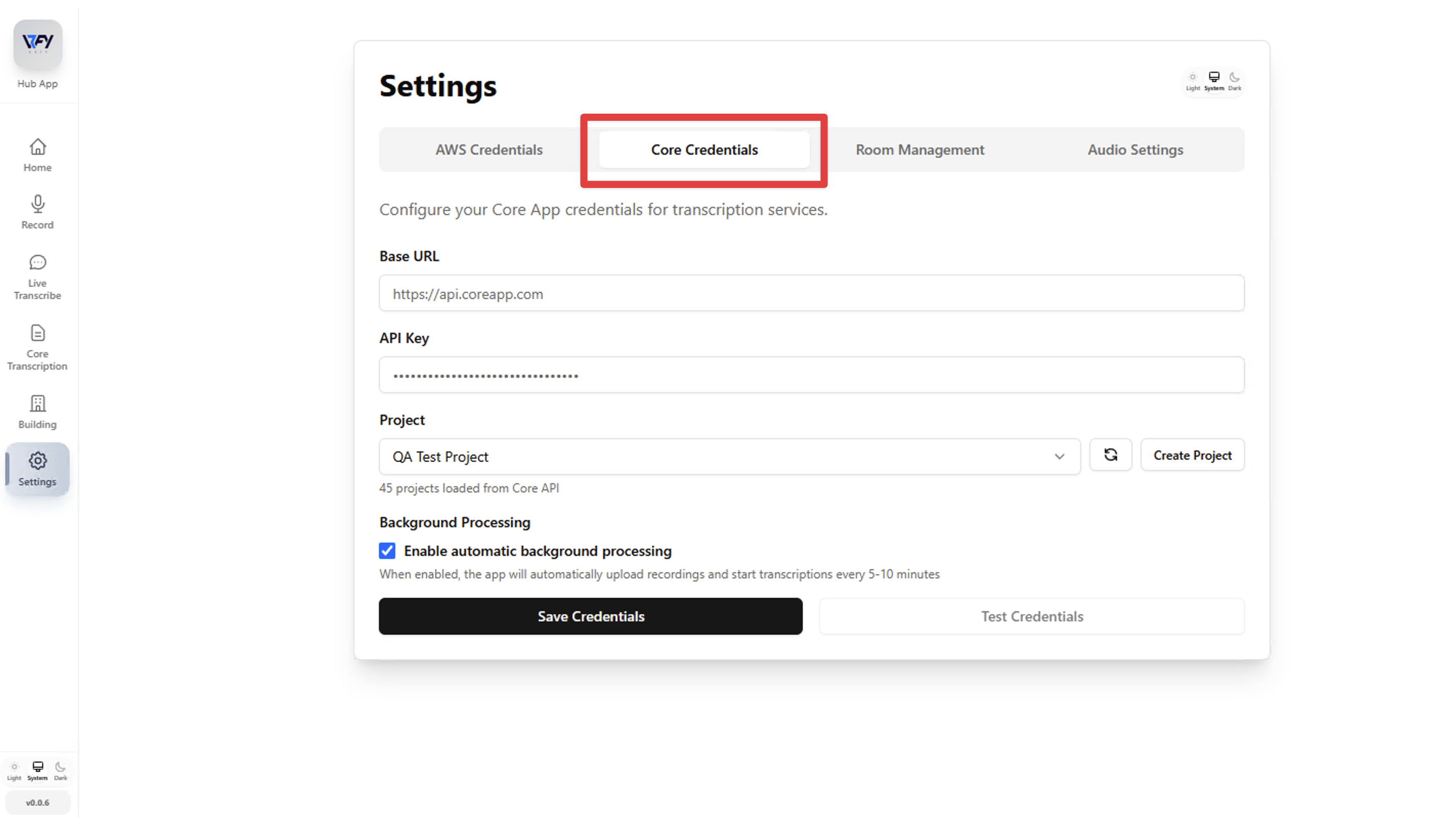
2. Click Core Credentials.
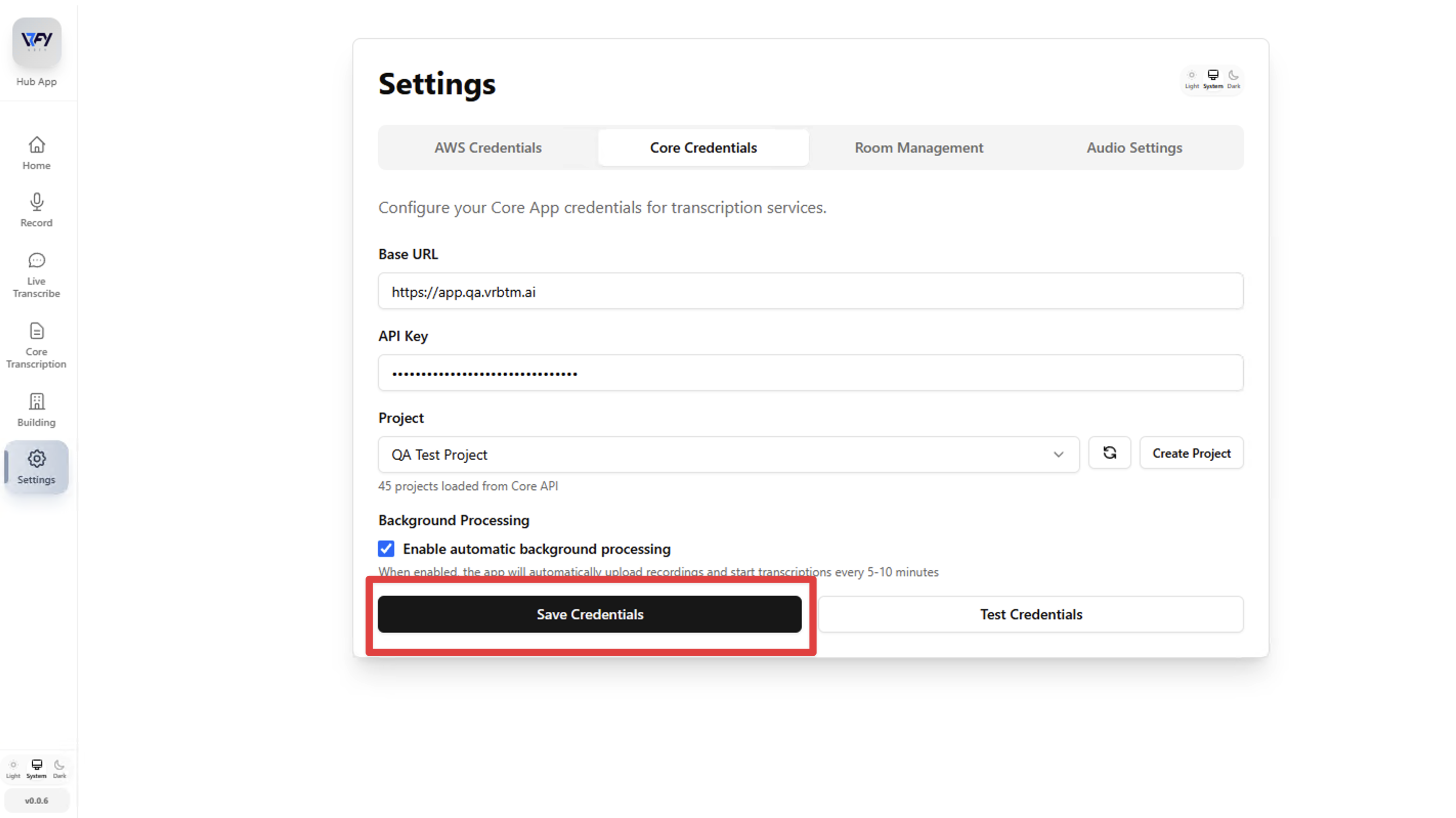
3. In the Base URL field, enter the address you use to access the VRFY platform — for example: https://YOUR_NAME.vrbtm.ai (Make sure the URL does not include any text after “.ai”. If it does, remove it to ensure the app can connect properly.)
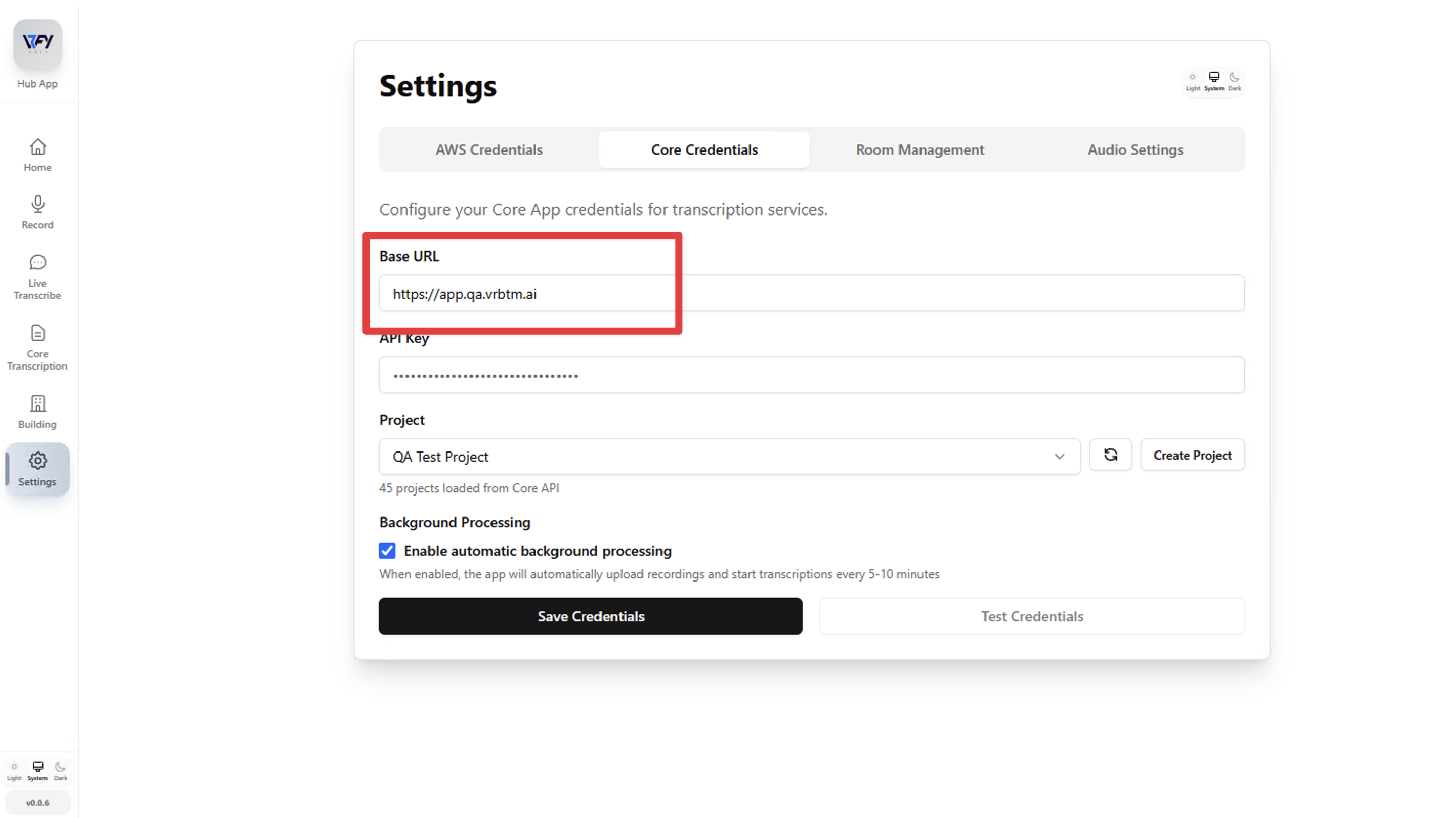
4. Paste your API Key into the corresponding field.
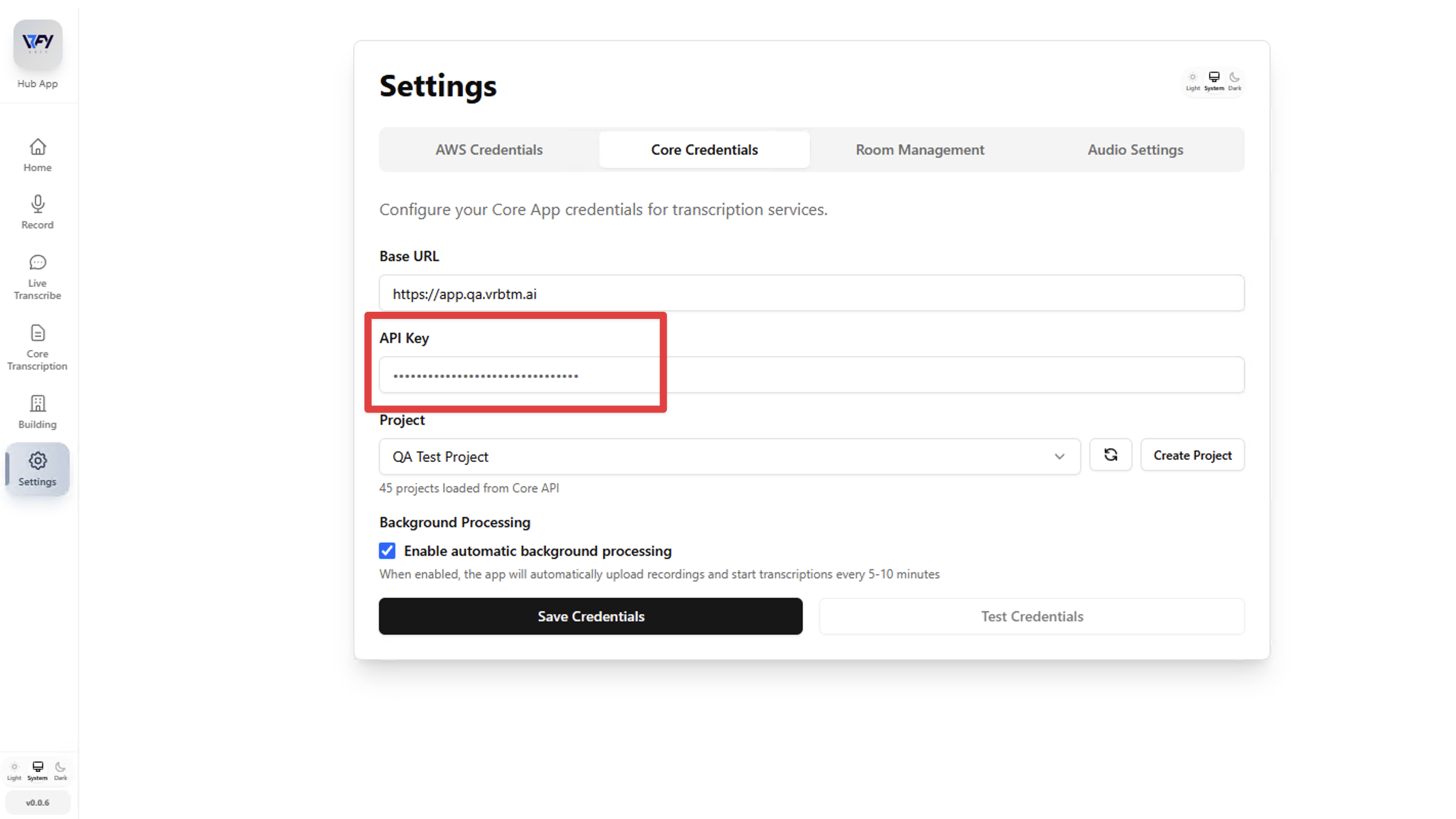
5. Click Test Credentials to verify the connection.
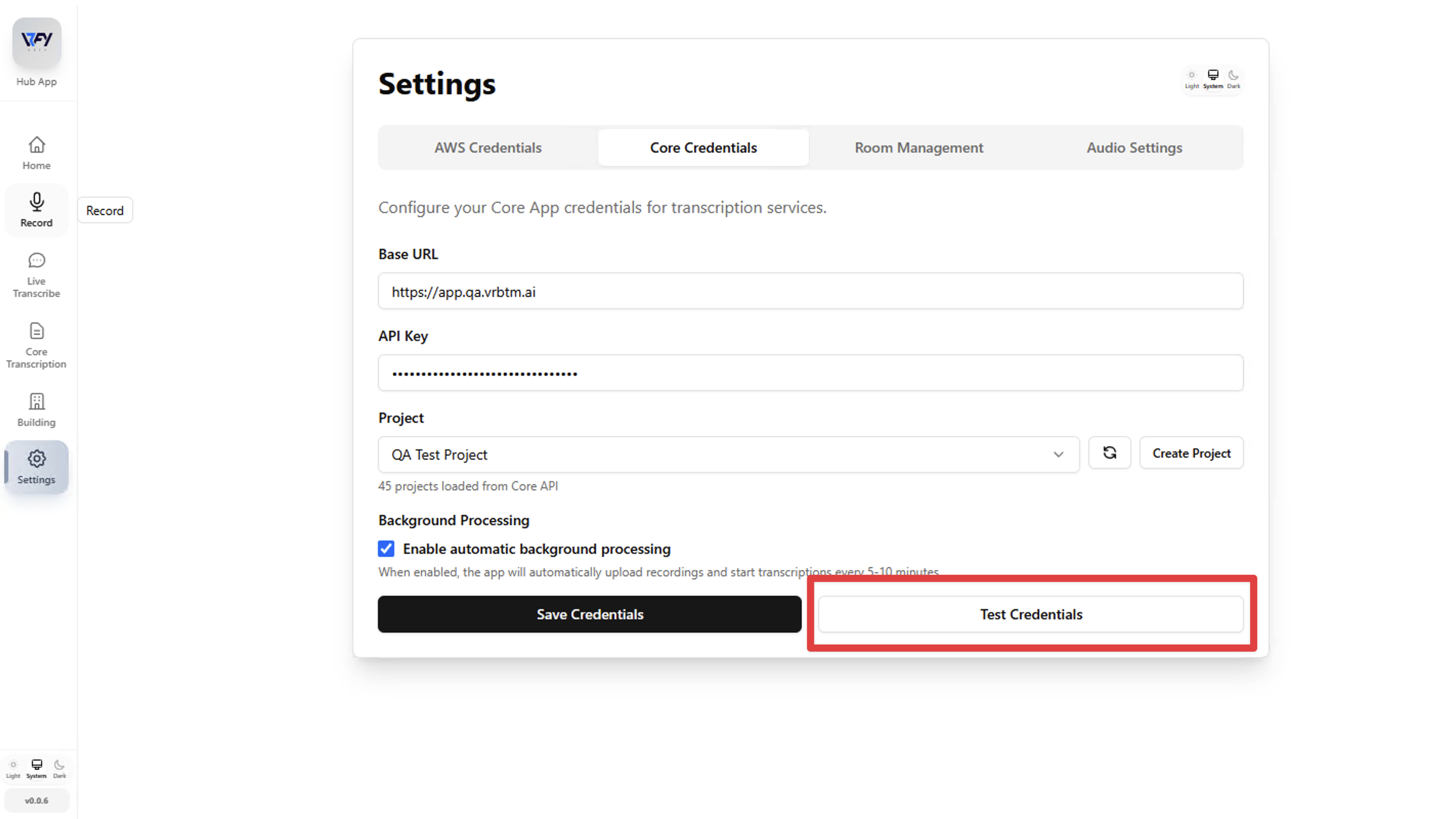
- If the configuration is successful, a pop-up message will confirm that the connection to the platform was established. If not, try creating a new API Key or contact Customer Support for assistance.
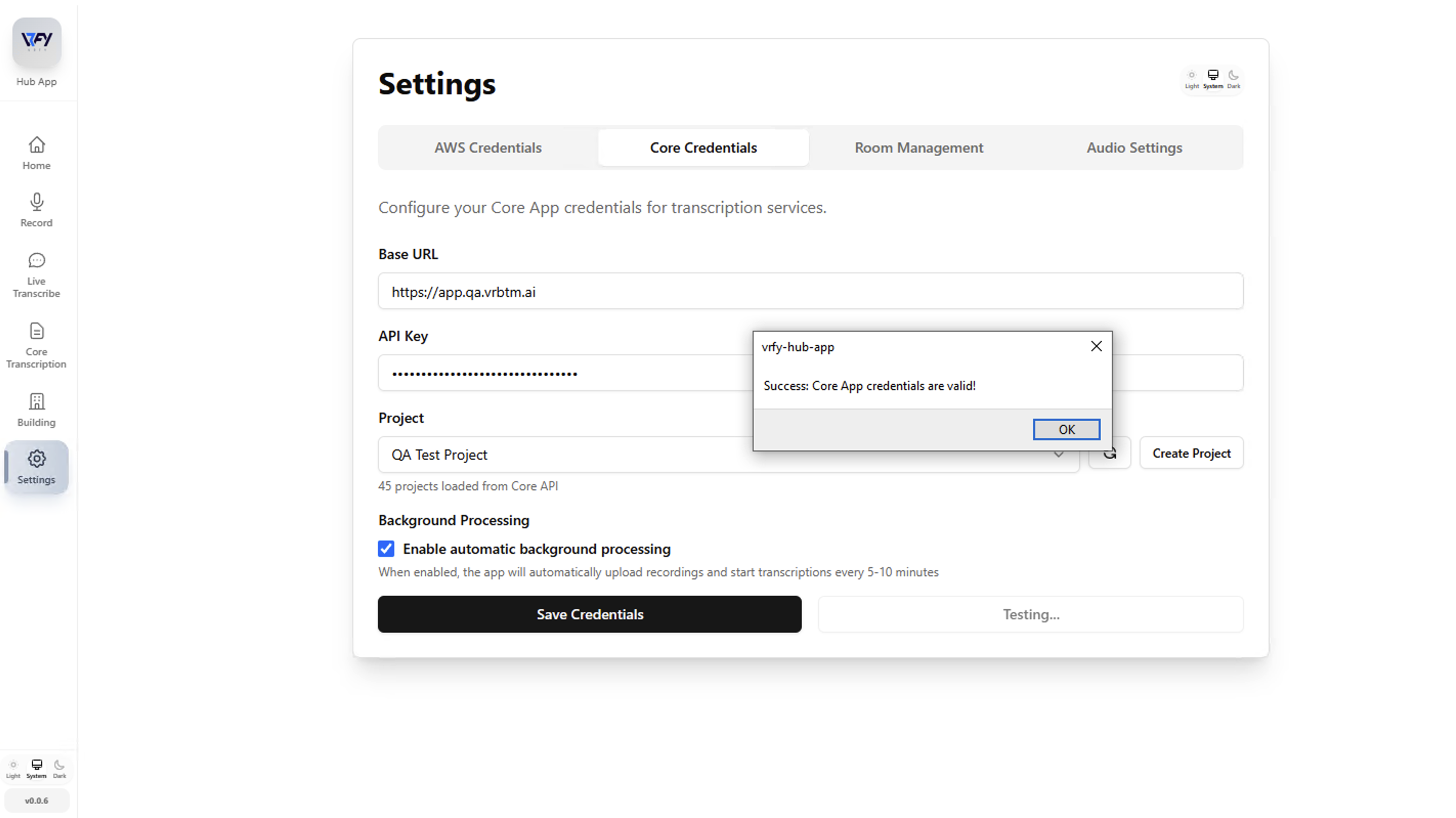
6. Once connected, the list of projects available to that API Key will appear.
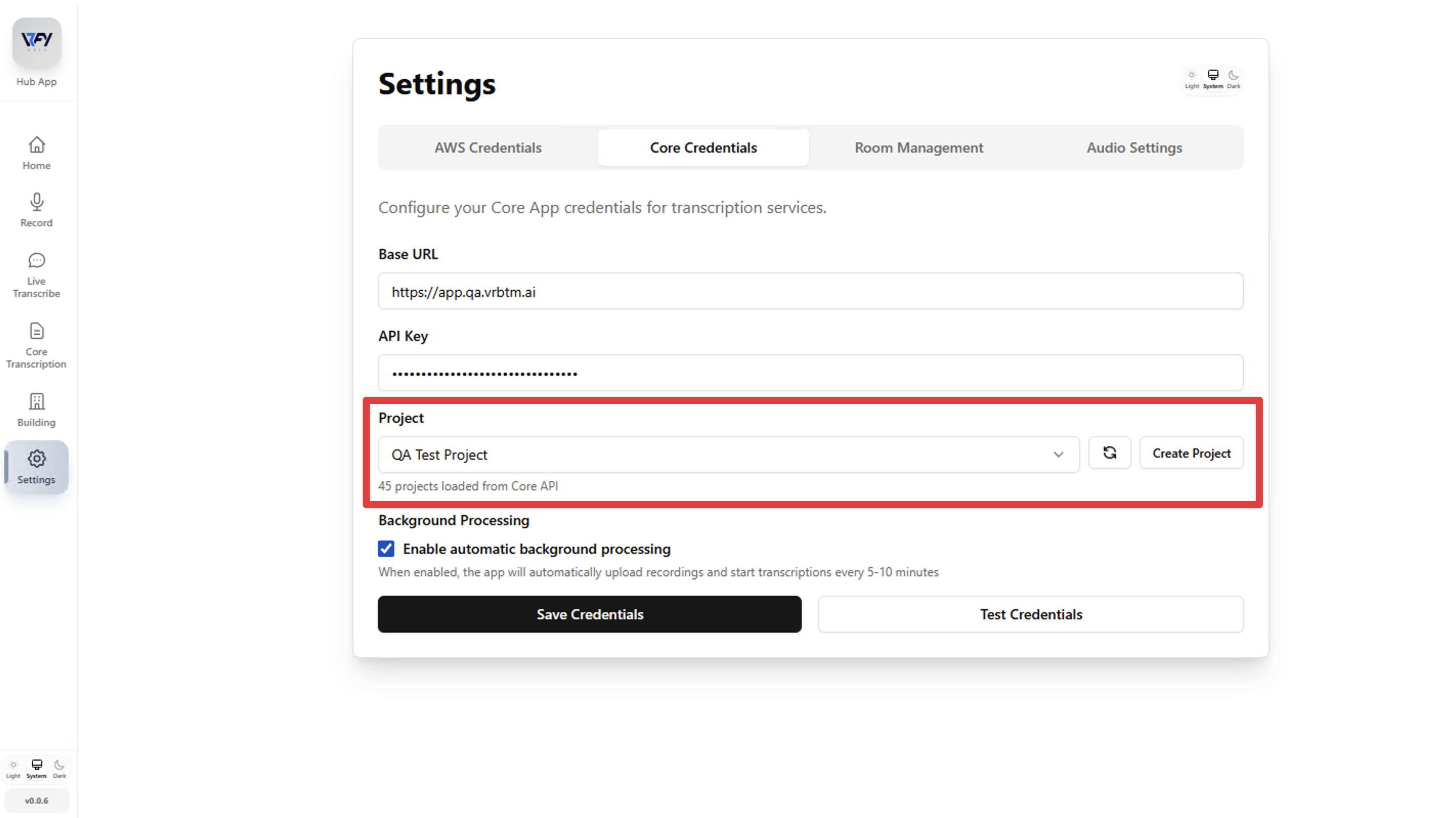
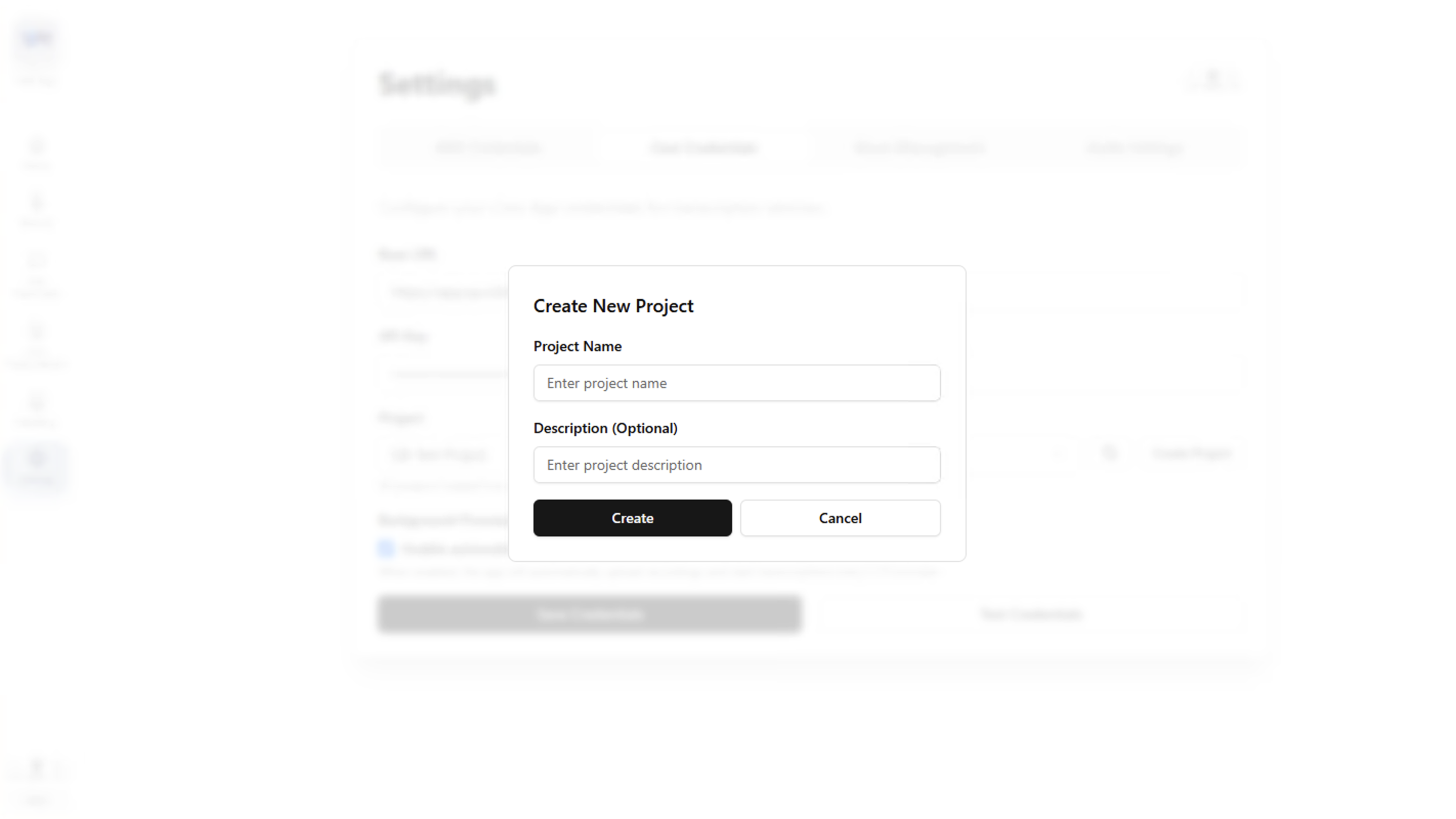
You can choose an existing project or create a new one directly from the interface.
7. Background Processing Option: When enabled, the app will automatically upload recordings and start transcriptions every 5–10 minutes in the background. 8. After completing all configuration steps, click Save Credentials to store your settings.